
Looking for support?
Use the options below to find the right support, whether you need contact details, an alternative drop-off location, or help resolving an issue with a locker.



Contact Information
For any questions about your delivery, including:
-
- Finding an alternative locker
- A barcode, QR code, or drop-off code that isn’t working
- A damaged parcel
- An item is missing from its assigned locker
- Tracking and delivery information
Please get in touch with your carrier or service provider using the details below. They’ll be best placed to help with delivery-related enquiries.
“
|
|





Troubleshooting
Finding the right code to scan or enter
If you already have a label attached to your item, scan the label barcode to begin your drop-off.
If you are printing a label at this locker, scan or enter the QR code, barcode, or drop-off code in the notification you received from your carrier or service provider.
EVRi
Please ensure you are scanning the large barcode at the bottom of your EVRi label.
If scanning is unsuccessful, you can manually enter the barcode number using the on-screen keypad.
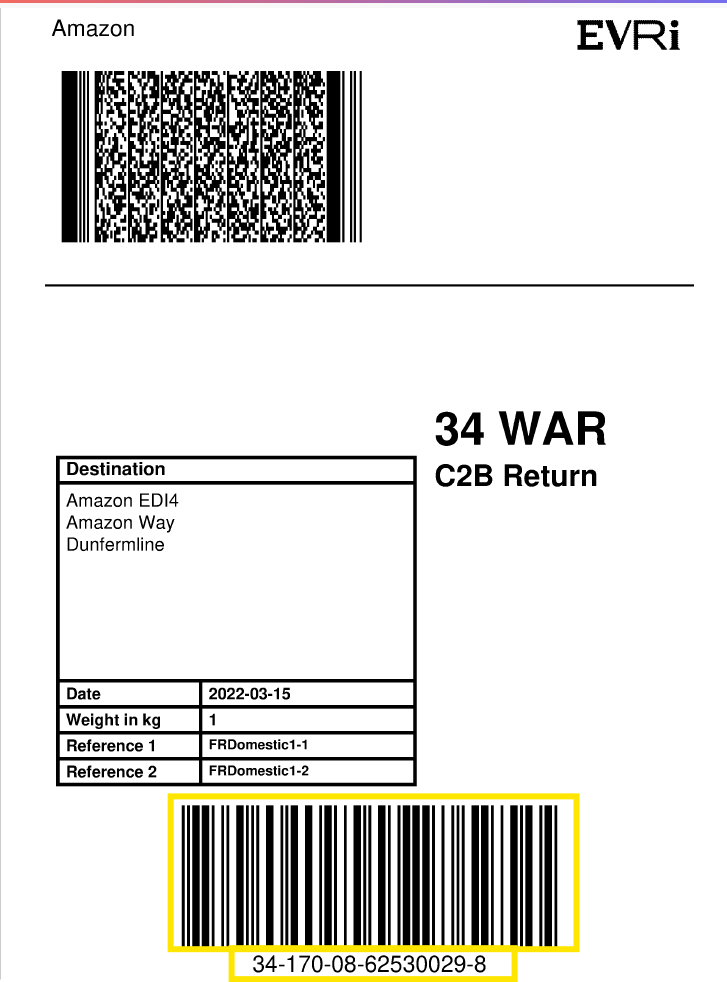
If the screen still indicates that the barcode is invalid or cannot be recognised,
you will be unable to drop off your item at the parcel locker. In this case, please click here to find an alternative drop-off location.
UPS
Please ensure you are scanning the large barcode at the bottom of your UPS label.
If scanning is unsuccessful, you can manually enter the 1Z tracking/barcode number using the on-screen keypad.
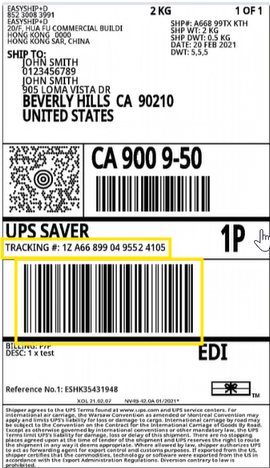
If the screen still indicates that the barcode is invalid or cannot be recognised,
you will be unable to drop off your item at the parcel locker. In this case, please click here to find an alternative drop-off location.
Royal Mail
Please ensure you are scanning either the 2D barcode or the long barcode on your Royal Mail label.
If scanning is unsuccessful, you can manually enter the barcode number. When entering a 2D barcode manually, please do not include any hyphens.
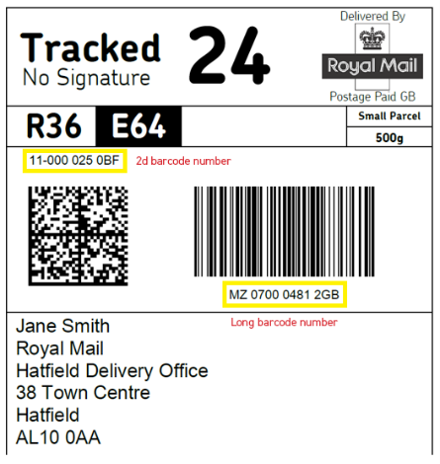
If the screen still indicates that the barcode is invalid or cannot be recognised,
you will be unable to drop off your item at the parcel locker. In this case, please click here to find an alternative drop-off location.
DPD
Please ensure you are scanning the large barcode on your DPD label.
If scanning is unsuccessful, you can manually enter the 14-digit parcel number using the on-screen keypad.
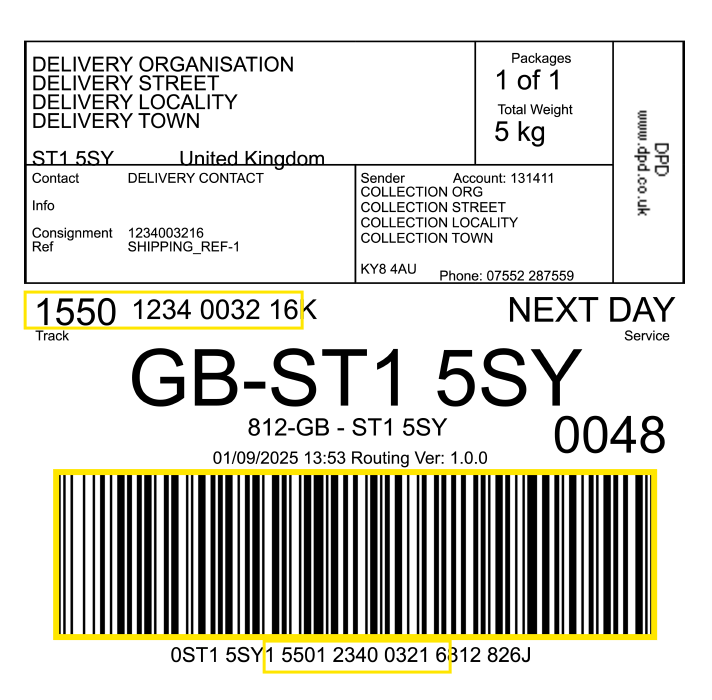
If the screen still indicates that the code is invalid or cannot be recognised, you will be unable to drop off your item at the parcel locker. In this case, please click here to find an alternative drop-off location.
Scanning or entering your code
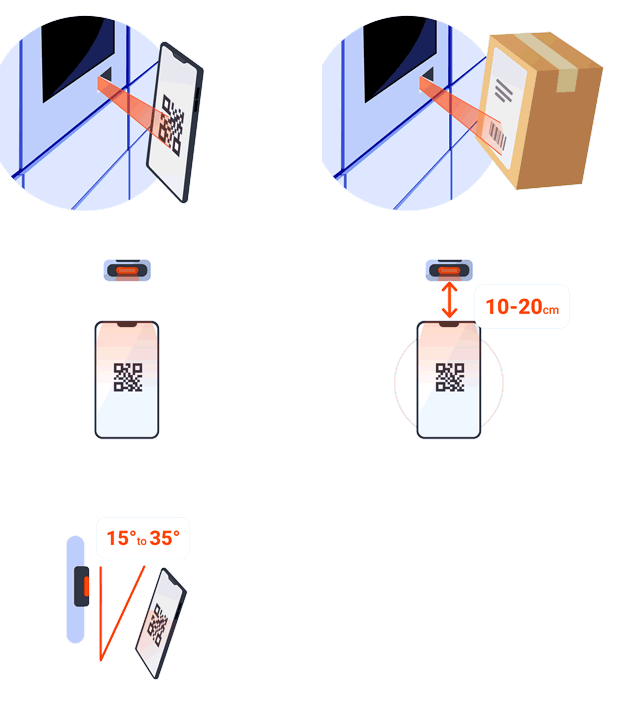
To scan your barcode or QR code, please position it 10–20cm away from the scanner, at an angle of 15–35 degrees.
Ensure the brightness on your phone is not too low.
Alternatively, you can use the on-screen keyboard to enter your code manually.
Troubleshooting / I still need help
I still don’t know which code to scan or enter
Please get in touch with your carrier or service provider for further support.
You can find contact details for all our carriers and partners here.
My code isn’t recognised / the locker says my code has already been used
If you’ve already checked that you are using the correct code, please get in touch with your carrier or service provider for further support.
You can find contact details for all our carriers and partners here.
Accessible/Lower Height Boxes
‘I need a box towards the bottom of the locker’
on the screen. Any available lower-height boxes will then be
highlighted in white for you to choose from.
Choosing the Right Size Box for Your Item
together with the maximum size each box can hold.
Please choose the smallest box that fits your item’s dimensions.
Troubleshooting / I Still Need Help
Please check back later, as availability is updated throughout the day.
If you need to drop off your item sooner, you can use another location. Click here to find an alternative locker.
Printing a Label at the Locker
- The locker will automatically recognise if a label is required based on the code you scan or enter at the start of your drop-off.
- Once you’ve selected your box size, the label will print automatically.
- Please attach the label securely to your item before placing it in the locker.
- Items without a label may not be collected or delivered.
- Remember to dispose of any backing paper or waste responsibly.
Printing Multiple Labels
If your carrier or service provider requires more than one label, the locker will print them automatically.
After placing your first item in the locker and closing the door, the next label will print automatically for your remaining item(s).
Printing an International Label
If an international shipment requires additional documentation, the locker will automatically print all necessary labels.
In some cases, two labels will be printed. Please attach both labels to your item before placing it in the locker to ensure it can be processed correctly.
Troubleshooting / I Still Need Help
The locker says the printer is unavailable
The printer is temporarily unavailable. Our team is aware of the issue and is working to resolve it as quickly as possible.
Please try again later or click here to find an alternative drop-off location.
I haven’t received a printed label
If you’ve checked that you’ve scanned or entered the correct code, there may be a temporary issue with the printer.
Please try another drop-off location or contact your carrier or service provider for further assistance.
I was expecting multiple labels, but only one has printed
If you’ve already checked that you’ve scanned or entered the correct code, please contact your carrier or service provider for support. They will be able to confirm whether additional labels are required for your shipment.
Placing Your Item in the Locker
- A locker door will open automatically for you.
- Place your item upright inside the locker and ensure it fits completely within the compartment. This helps the locker detect your item correctly.
- Once your item is inside, close the door firmly to complete your drop-off.

Changing Your Box Size
- If your item doesn’t fit in the box size you’ve chosen, select ‘I need to change the box size’ on the screen. Any available larger box sizes will be highlighted in white.
- Once you’ve selected a new box size, place your item in the locker
and close the door to continue. - If no larger boxes are available, please try again later or find an alternative drop-off location.
Troubleshooting / I Still Need Help
The locker says my item is not detected
If you’ve already tried repositioning your item and placing it upright
in the locker, it may be too small for the locker to detect correctly.
Please select ‘Cancel’ and find an alternative drop-off location.
Reviewing Your Drop-Off Summary
Once your drop-off is complete, you can take a photo of the transaction summary displayed on the locker screen for your records.
Please note that your carrier or service provider may not accept this as proof of postage.
Getting a Receipt for Your Transaction
You may also be able to request a receipt by SMS or email, depending on your carrier or service provider.
If available, these options will be displayed on the locker screen. Simply select your preferred option and enter your mobile number or email address using the on-screen keyboard.
Troubleshooting / I Still Need Help
I haven’t received my receipt
It can take up to 15 minutes for your receipt to arrive by SMS or email. If you requested an email receipt, please check your junk or spam folder.
If your receipt hasn’t arrived after 15 minutes, please contact your carrier or service provider for support.
Sharing Your Feedback
Your feedback helps us improve the locker experience for everyone.
From time to time, you may be invited to complete a short survey after using a locker. We’d be grateful if you could take a few minutes to tell us about your experience.
Have more to share? Whether you have a suggestion, compliment, or comment about your experience, we’d love to hear from you.
Click here to send us your feedback.
Something Else/I Still Need Help
If you have followed the locker instructions, the on-screen help and the online help page and still need help, please contact your carrier or service provider for further support.
If you’ve followed the locker instructions, on-screen help and the Online Help Page and still need help, please get in touch with your carrier or service provider for further support.
You can find contact details for all our carriers and partners here.
Finding the right code to scan or enter
To get started, scan or enter the code provided in the notification you received from your carrier or service provider. Once your code has been recognised, a locker door will open automatically.
Scanning or entering your code
To scan your barcode or QR code, please position it 10–20cm away from the scanner, at an angle of 15–35 degrees.
Ensure the brightness on your phone is not too low.
Alternatively, you can use the on-screen keyboard to enter your code manually.
Troubleshooting / I still need help
I still don’t know which code to scan or enter
Please get in touch with your carrier or service provider for further support.
You can find contact details for all our carriers and partners here.
My code isn’t recognised / the locker says my code has already been used
If you’ve already checked that you are using the correct code, please get in touch with your carrier or service provider for further support.
You can find contact details for all our carriers and partners here.
Collecting my item from the locker
Once your code has been entered, a locker door will open automatically for you. Please remove your item and close the door.
Troubleshooting / I still need help
My item is stuck inside the locker
Please get in touch with your carrier or service provider for further support.
You can find contact details for all our carriers and partners here.
I’ve opened a box, but there is nothing inside
Please get in touch with your carrier or service provider for further support.
You can find contact details for all our carriers and partners here.
I’ve opened a box, but the item inside is not mine.
Please get in touch with your carrier or service provider for further support.
You can find contact details for all our carriers and partners here.
Sharing Your Feedback
Your feedback helps us improve the locker experience for everyone.
From time to time, you may be invited to complete a short survey after using a locker. We’d be grateful if you could take a few minutes to tell us about your experience.
Have more to share? Whether you have a suggestion, compliment, or comment about your experience, we’d love to hear from you.
Click here to send us your feedback.
Something Else/I Still Need Help
If you have followed the locker instructions, the on-screen help and the online help page and still need help, please contact your carrier or service provider for further support.
If you’ve followed the locker instructions, on-screen help and the Online Help Page and still need help, please get in touch with your carrier or service provider for further support.
You can find contact details for all our carriers and partners here.